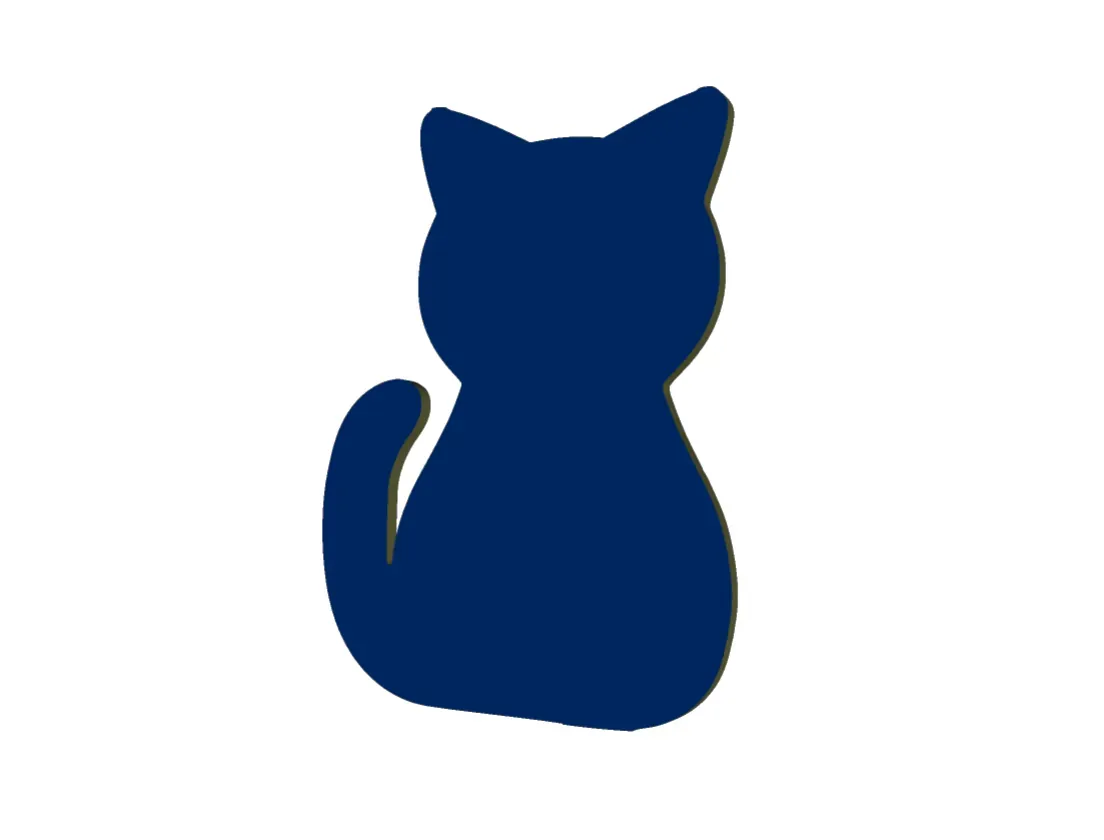
Custom Board Outline
To import and use more complex shapes for your board outline, we can use DXF files.
Image to DXF
First, create the shape you want in a drawing program or find an image online. For the best results, the image should be mostly a solid color with a clearly defined and closed outline.
For my example, I’m using this cat outline that I found online.
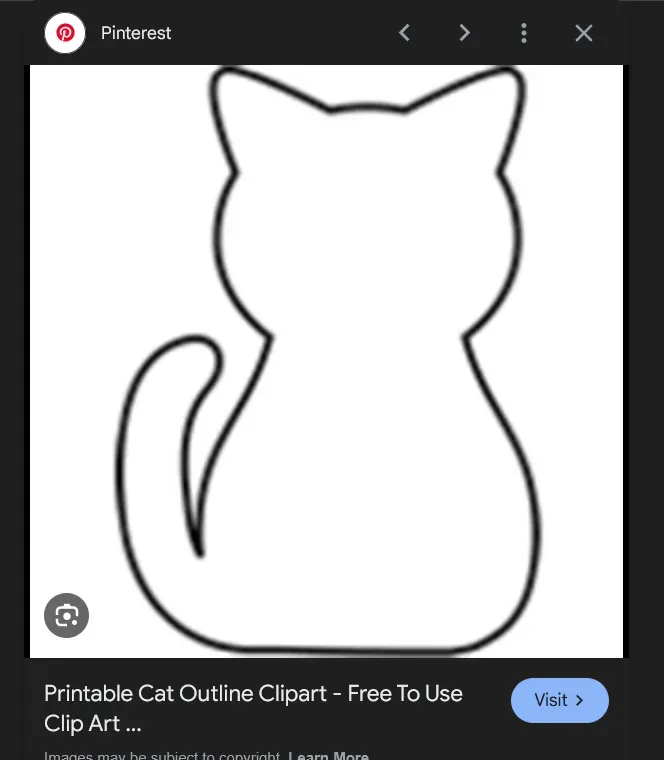
Next, I’ll head to a website that can convert images to DXF. I’m using Convertio. I’ll upload my cat image and download it as a DXF file.
DXF to Board Outline
Once you have the DXF file, go back to the EasyEDA PCB editor and select File → Import → DXF.
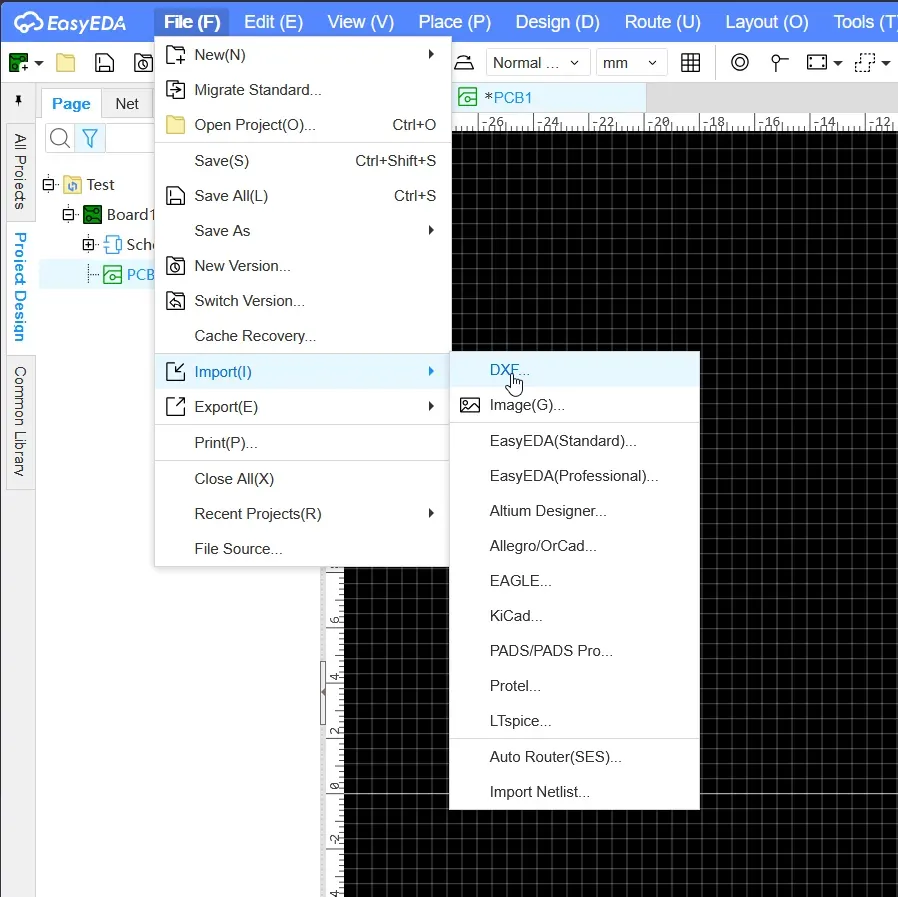 A dialog will pop up. Here, you need to do two main things. First, set the Import Layer to Board Outline Layer.
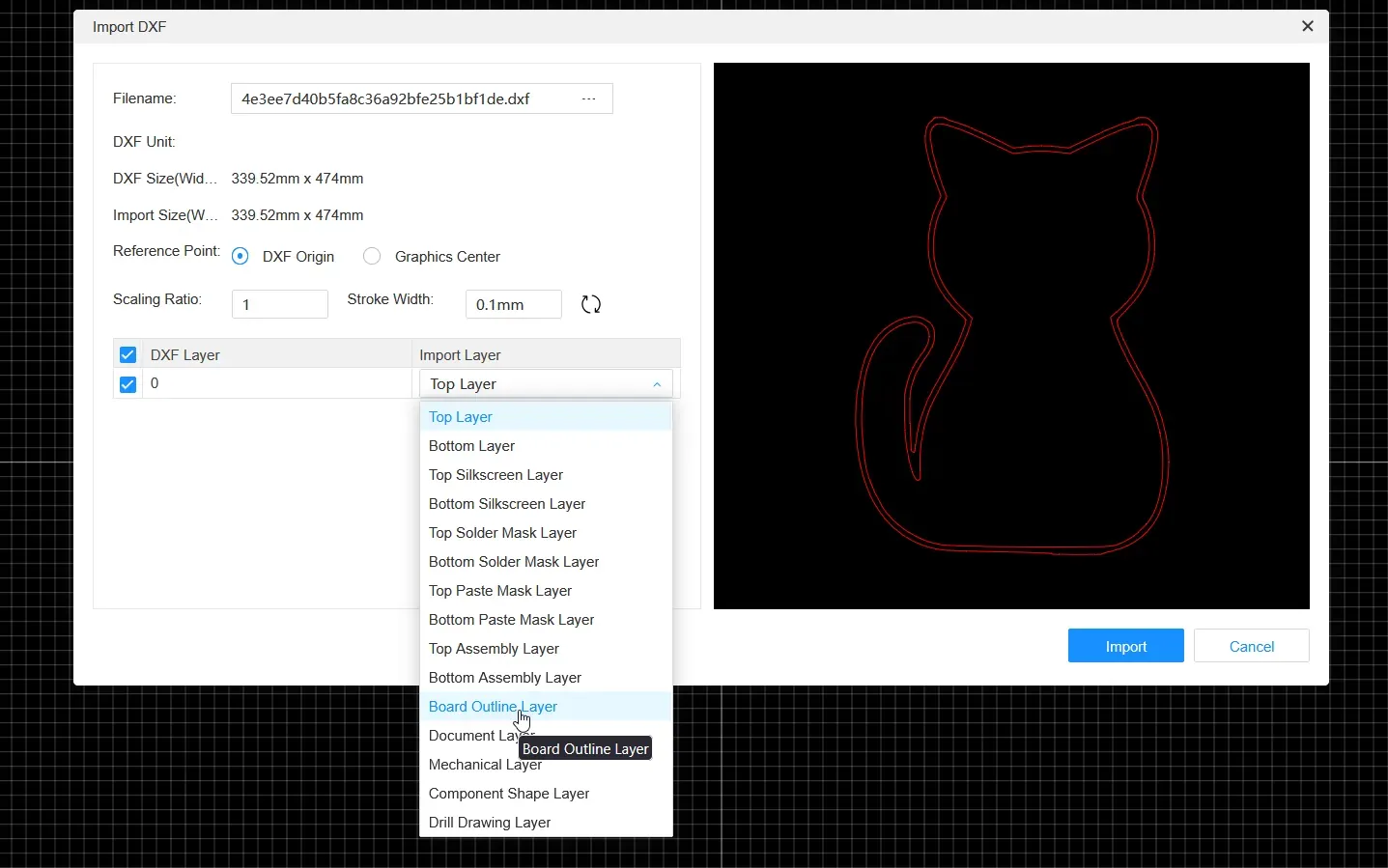
Second, adjust the Scaling Ratio so that the imported shape is under 100×100 mm.
Once that’s done, click Import to place the board outline in the editor.
In my case, the DXF imported with two sets of outlines, so I just selected one and deleted it.
You’re all done! You’ve successfully imported a custom shape as your board outline :D